How to make a trend video with your photos
Choose the right story, prepare your photos, save your private link and follow your video from checkout to download.
Choose the story before choosing a photo
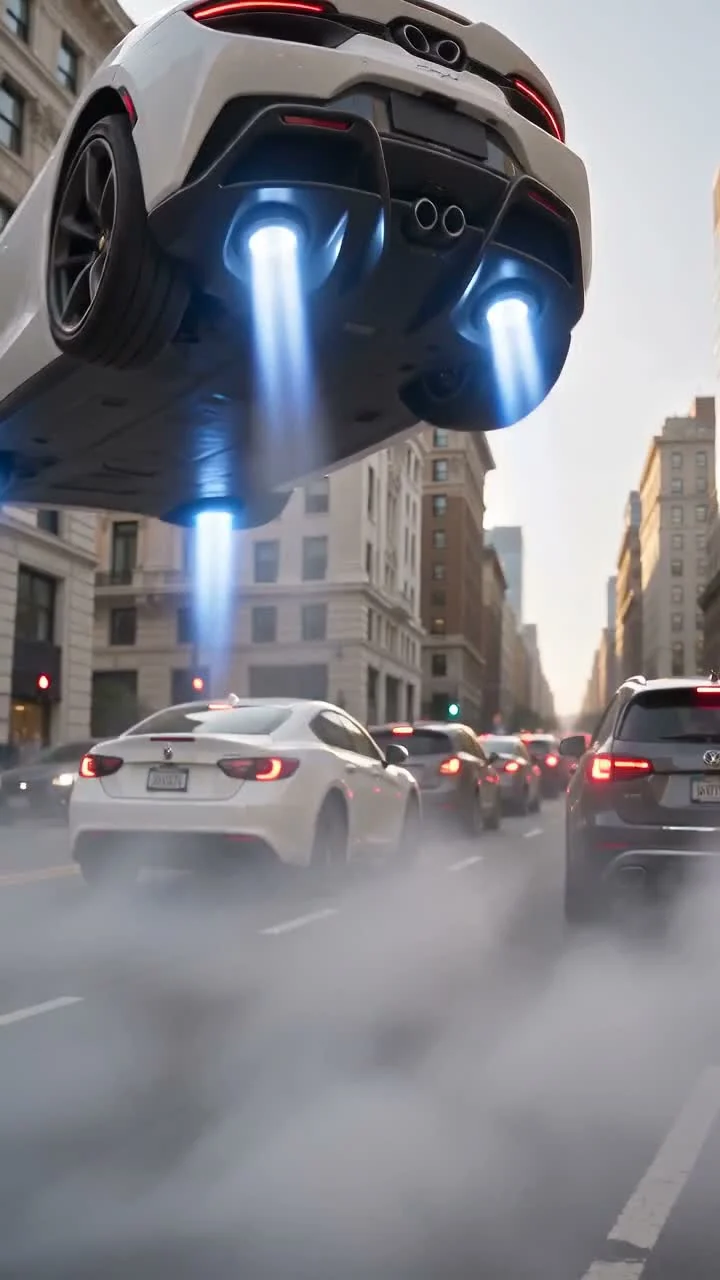
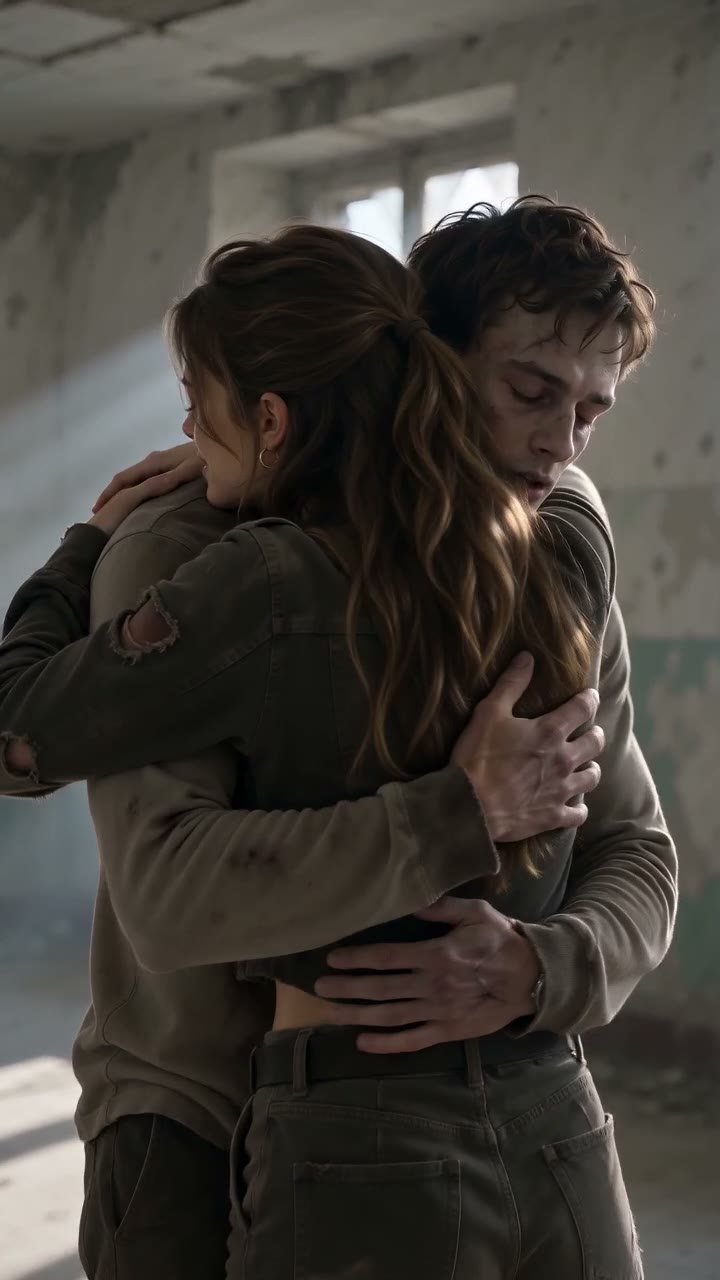
Start with the example and the description on the trend page. Flying Car puts one adult driver into a fictional traffic escape. AI Zombie Trend uses two separate reference images for an infected character and a surviving companion, followed by a sunny memory. People and pets are permitted for the zombie story; choose images and a pairing that suit the fictional scene.
Not every trend you can read about is a generator. Use the photo form on a supported trend page to create an order. An editorial explanation or an illustration does not mean that a video can be purchased for that idea. Examples show one possible result, not a promise to reproduce a face, action or soundtrack exactly.
Match each image to its role
For Flying Car, choose one clear portrait of the adult who should be driving. You do not need a photograph of your own car: the white sports car and traffic are part of the story. Avoid a group photo, a tiny distant face, sunglasses covering the eyes or a strong beauty filter.
For AI Zombie Trend, put the character who becomes the zombie in the first image and the surviving companion in the second. Use two separate images, with one person or pet clearly visible in each; a photo of two subjects together does not replace the two slots. Similar lighting and clarity help make the pair easier to interpret. A pet image is permitted, but human gestures, clothing and interactions may translate unpredictably.
Choose JPG, PNG or still WebP files, no larger than 10 MiB each. Each side must be more than 300 and less than 6000 pixels; the image must contain at most 16 million pixels, with width divided by height greater than 0.4 and less than 2.5. If a photo opens in the browser but the upload is rejected, export a smaller, ordinary still JPG or PNG within those limits. Renaming a file does not convert it.
Get permission for the scene, not just the photograph
Use photos you own or have permission to process. Every identifiable person must be an adult who agrees to the depiction. For a pet photograph, obtain the necessary image rights and permission from its owner where appropriate. Do not upload children, private intimate images, sexual material or anything intended to humiliate, threaten or impersonate someone.
The zombie story includes undead makeup, distress and an unfired handgun before the embrace and memory. Make sure the adults involved understand that content. It is fictional, non-graphic horror: do not seek animal abuse, attacks, gore or injury. You do not need to stage a weapon, apply zombie makeup or put a pet in distress to take a reference photo.
Check the selected photos and choose the video format
The image shown after selection is a local photo preview in your browser. It is your input, not an AI-generated preview of the video. Selecting a file alone does not upload it. Upload starts when you submit the creation form, after the availability and permission checks.
Flying Car requests a 10-second vertical 9:16 video. AI Zombie Trend requests 12 seconds and offers vertical 9:16 or landscape 16:9. Vertical suits a phone-first post; landscape gives a wider composition. The output format does not mean your source portrait must already have that shape.
Both formats use 720p generation settings with generated audio. These are generation requests, not a guarantee of identical frame timing or a particular sound recording. The story and audio direction are fixed; there is no custom script editor or promise of the original meme song. No spoken dialogue is requested for the zombie story. Faces, pet anatomy, hands, motion, scene transitions and audio can vary.
Save the full private link before Stripe checkout
The price is $6.99 USD for one video generation, paid once through Stripe. It is not a subscription, credit balance or unlimited-remake purchase. Check the selected story, role order and format before submitting. The creation form uploads your photos and makes an unpaid private order; payment comes afterward.
Before leaving for Stripe, save the full private order link shown by the form, including the #token part. Use the copy control, or select and copy the link manually if clipboard access is denied. Keep it in a private note or other secure place you control, then confirm that you have saved it and continue to checkout. The browser also tries to remember the order, but that is not a substitute for your own backup.
Anyone with the complete link may access the order, download available media or use its deletion control. Do not post it in a caption, public comment or screenshot. A receipt, order number or the token-free address in a checkout return is not the complete private link.
- Select the photos in the labelled slots, choose the format and confirm the required permissions and policies.
- Choose Create my video to upload and create the unpaid order.
- Copy the complete private link, keep a separate backup and confirm that you have saved it.
- Continue to Stripe, review the $6.99 USD purchase and complete payment only once.
Return to the same order after payment
Stripe returns you to the matching order. Stay in the same browser on the same site domain: that browser’s saved order token lets the return page authenticate the order. If it asks for a private link, open the full link you backed up or import it in My orders. A return URL can contain an order ID without its private token.
A success or cancelled word in the address is not proof of the payment outcome. The page checks payment with the server. If checkout was interrupted, refresh the existing order before doing anything else. If your bank shows a completed charge but the order still says unpaid, save the receipt reference and contact support rather than buying another video.
Follow processing, then download and inspect the MP4
Payment received, preparing generation and generating describe different stages; a paid order is not yet a finished video. Processing time varies. You can close the tab and return with your private link rather than paying again. Use Refresh for a current check if the connection failed or checkout was interrupted.
When the order says Video complete and offers a download, save the MP4 and check your browser’s Downloads list. Open the actual file, watch it through with sound and inspect both identities, motion and any sensitive scene before sharing. Clearly identify synthetic content when viewers might otherwise mistake it for a real event. Obtain any separate music or publication permissions needed for your post.
Completed videos are available for seven days after successful completion, not seven days after payment. Use the deadline on the order page and download immediately. Submitted source images expire after 24 hours, and unpaid orders expire after 24 hours from creation. A saved link is not permanent hosting and cannot bring back expired or deleted media.
For failed generation, a missing or corrupt download, an unresolved status or a charge that does not match the order, keep the order ID, receipt reference and error details. Contact support for review. Refund pending is not a completed refund; subjective disappointment is not automatically a technical failure. Statutory consumer remedies still apply.
Frequently asked questions
Photos, payment and access to your video.
Can I make a free AI preview before paying?
No. The photo preview shows the selected source image locally. A generated example is another completed example, not a preview made from your photos.
Can I change the photos or format after paying?
Check them before creating the order. The order uses its saved photos, story and format; it does not provide an editor for changing those choices after payment. Contact support about an order problem rather than assuming another payment will replace it.
Does buying one video include a matching commercial song?
No. The request includes generated audio, not a licensed copy of a particular recording. Review the sound and use appropriately licensed music if you add a track when publishing.